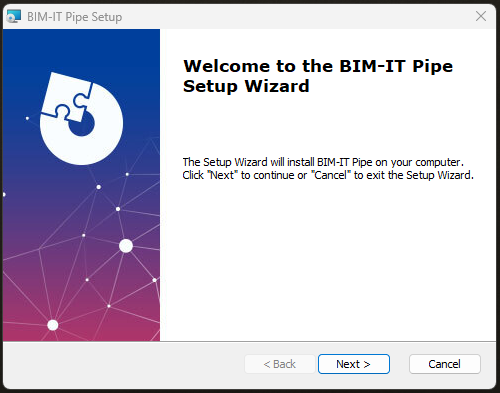
Run the installation file.
The installation wizard will appear. Follow the steps to complete the installation:
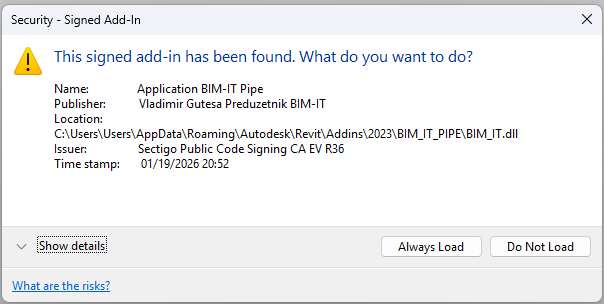
When you start Revit for the first time after installing BIM-IT Pipe, a security dialog will appear. Select Always Load:
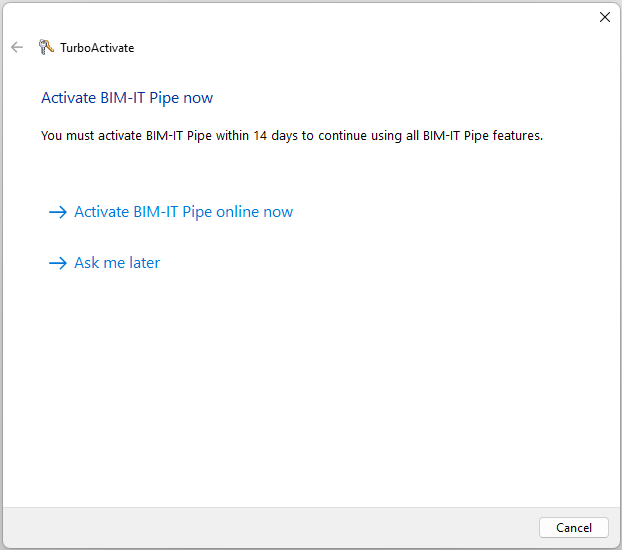
You can enter a serial number or continue in trial mode:
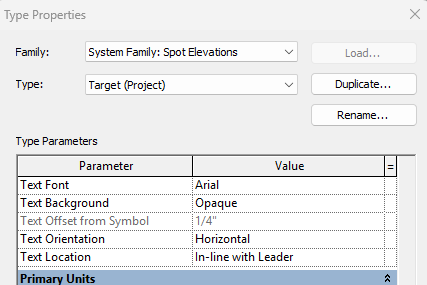
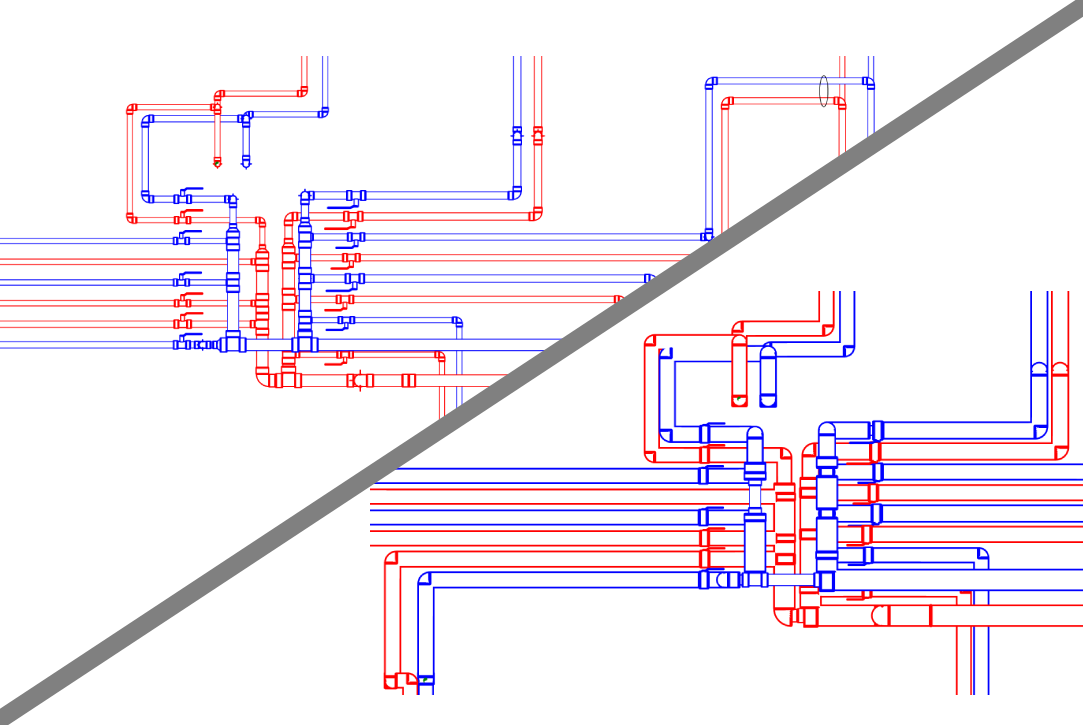
Sometimes there may be extra spacing between the elevation tag and the pipe size tag.
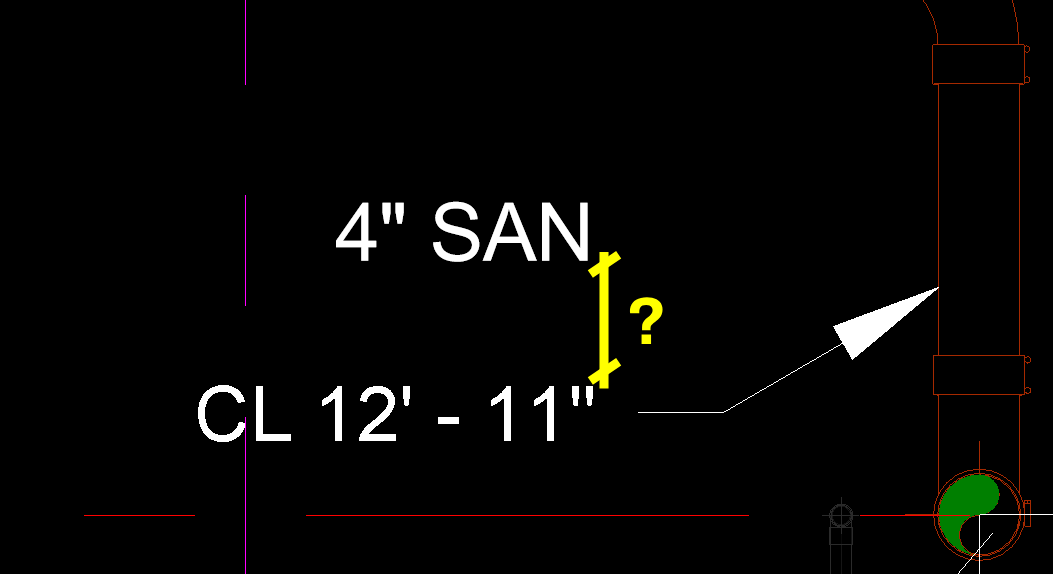
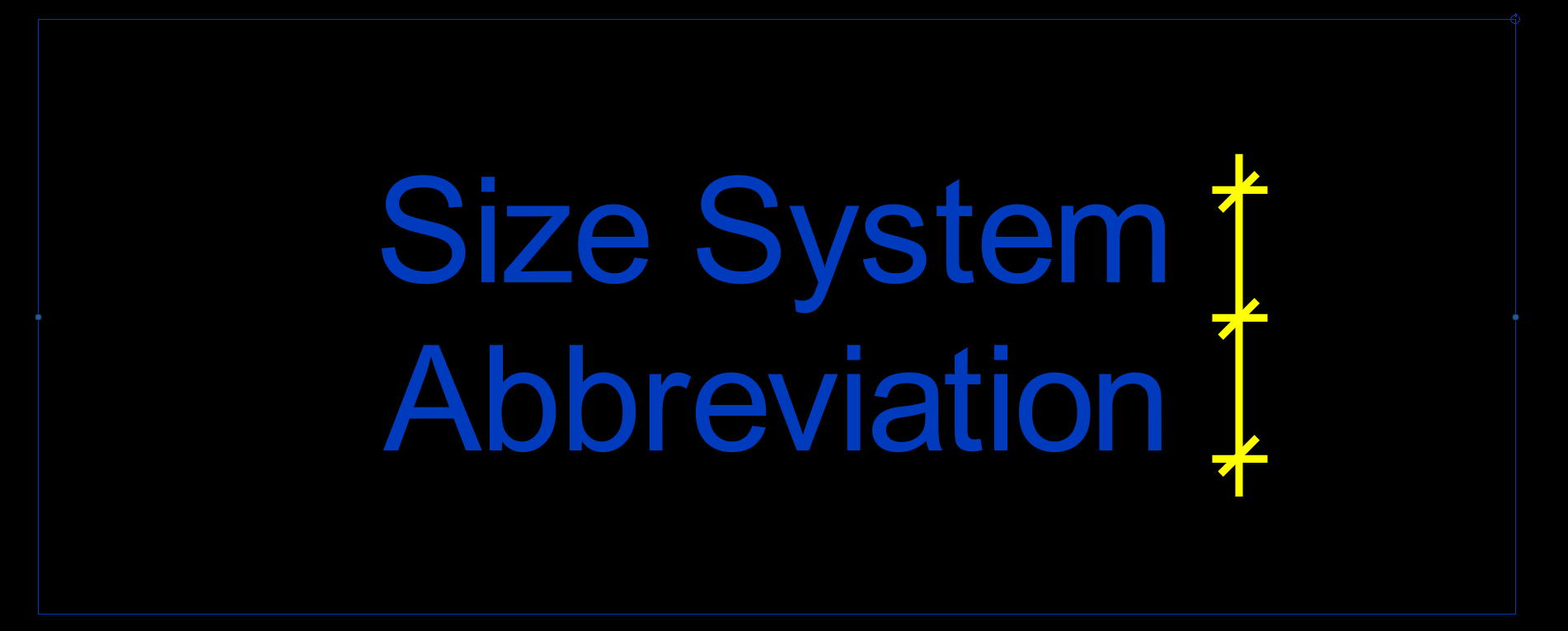
If the label wraps to two lines, the calculated height increases and spacing grows.
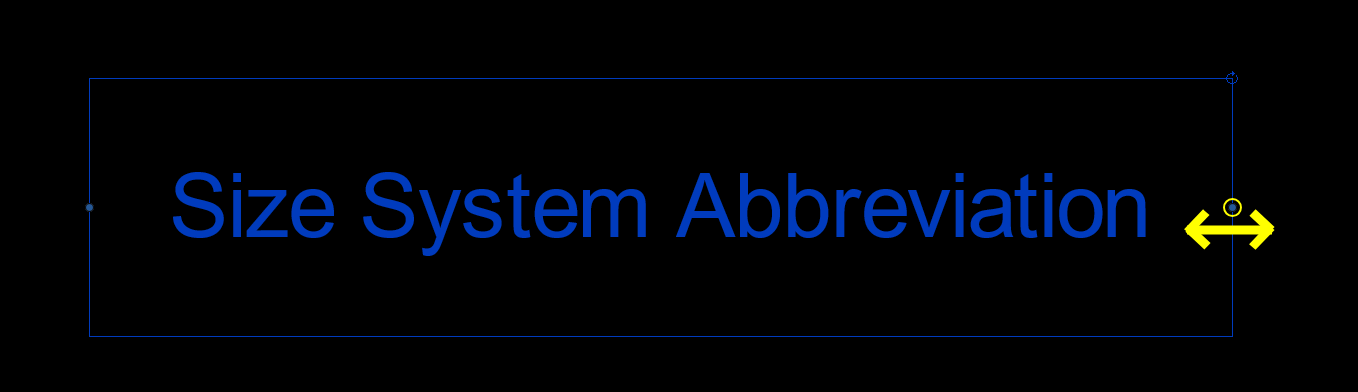
Stretch the label so text stays in one line.
Reload family and run tool again.
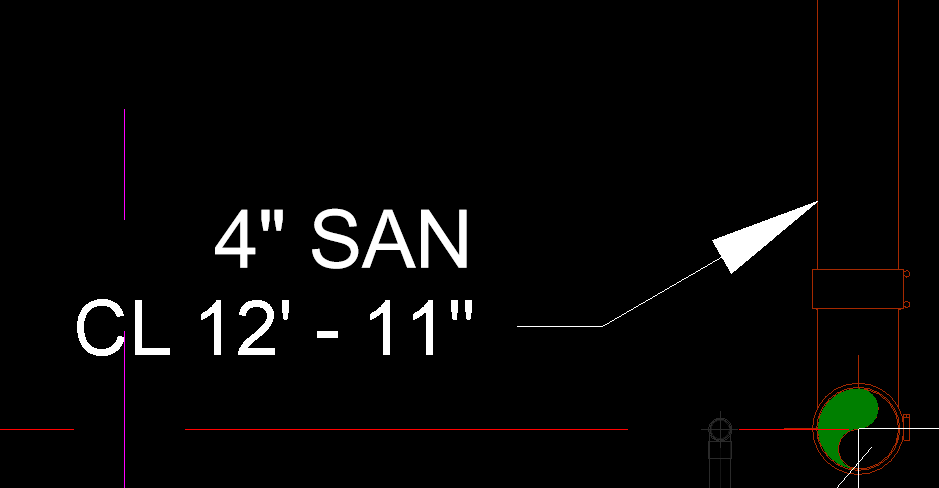
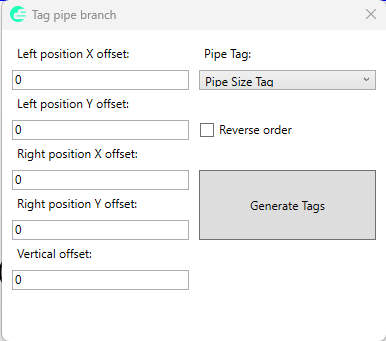
First select existing spot elevation and then pipes in pipe bank you want to tag. Define offsets if needed and generate tags. The order of the tags will be defined based on the selected pipes order. Select Reverse order check box to reverse tags order.
If there is an extra space between the elevation tag and the pipe size tag, you will need to edit tag family.
If the original tag family label is too small to fit the text on a single line, Revit wraps the text into two lines. In that case, the total label height is used for the position calculation, which results in increased spacing.
To avoid this behavior, edit the Pipe Size Tag family and stretch the tag label so that the text fits on a single line.
Reload the tag family into the project and run the Pipe Size Tag tool again.
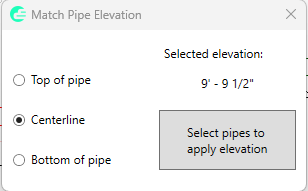
All pipes on which elevation was applied will inherit Reference Level from base pipe (first selected pipe). The tool is not working on pipes with a slope.
Once aligned, the pipes can be connected using standard Revit alignment or connection methods without fitting placement errors caused by elevation mismatch.
To use the tool, start the command, select the main pipe first, and then select the branch pipe. The branch pipe is automatically moved to the required elevation while preserving its existing slope.
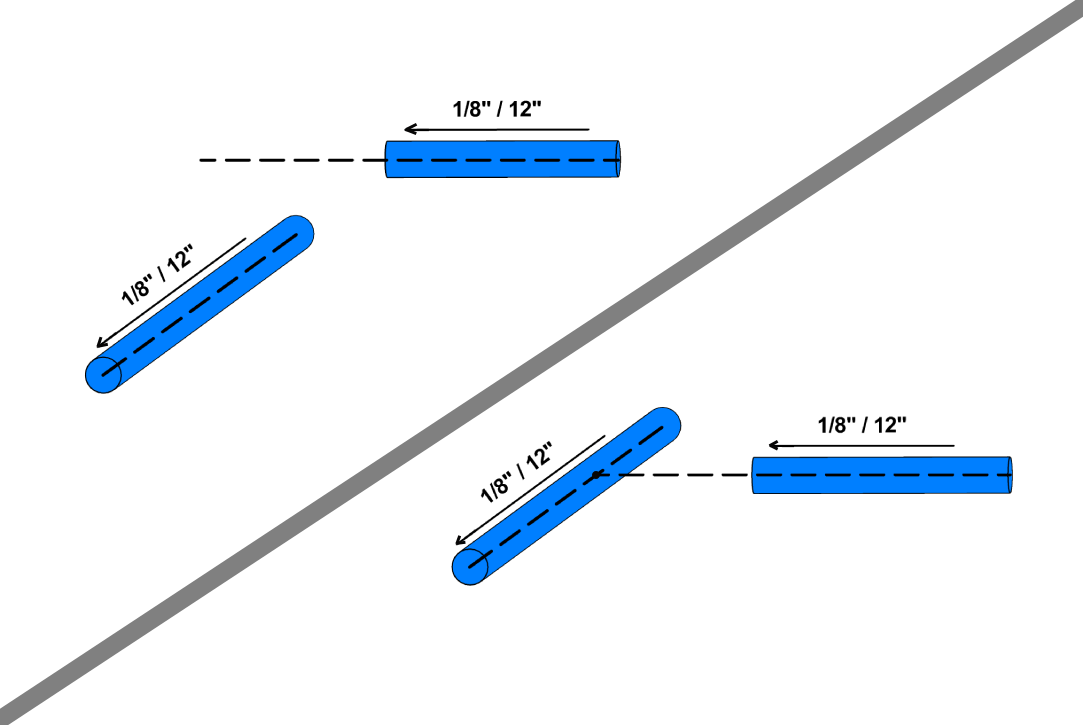
First select the reference pipe or line, and then the section view you want to align.
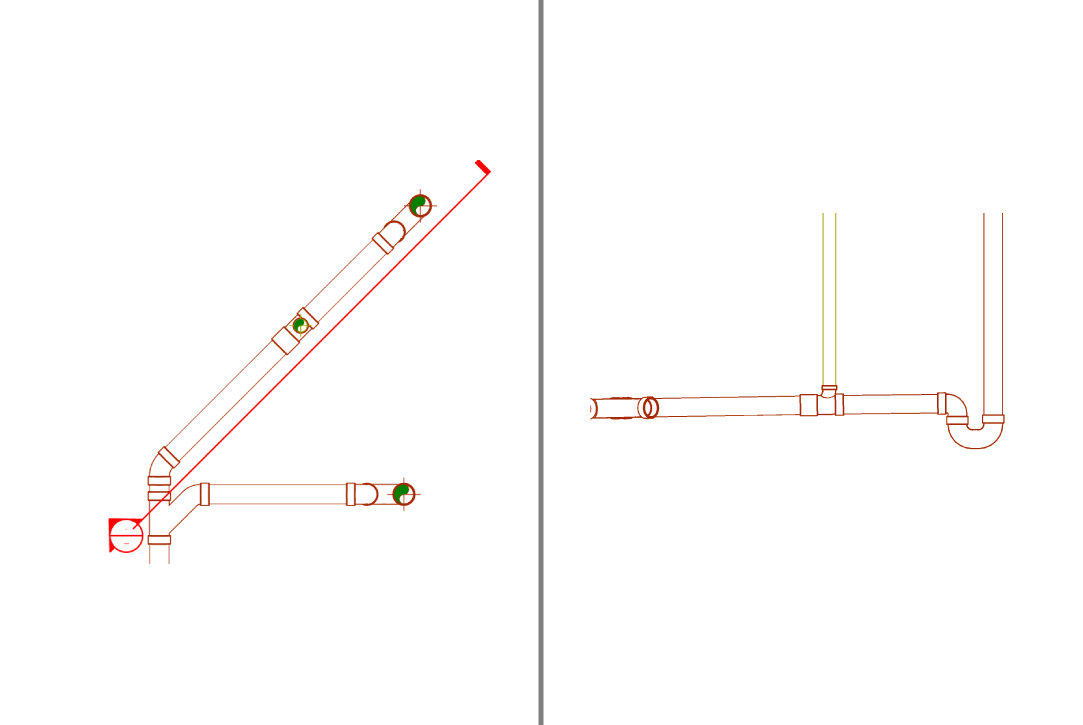
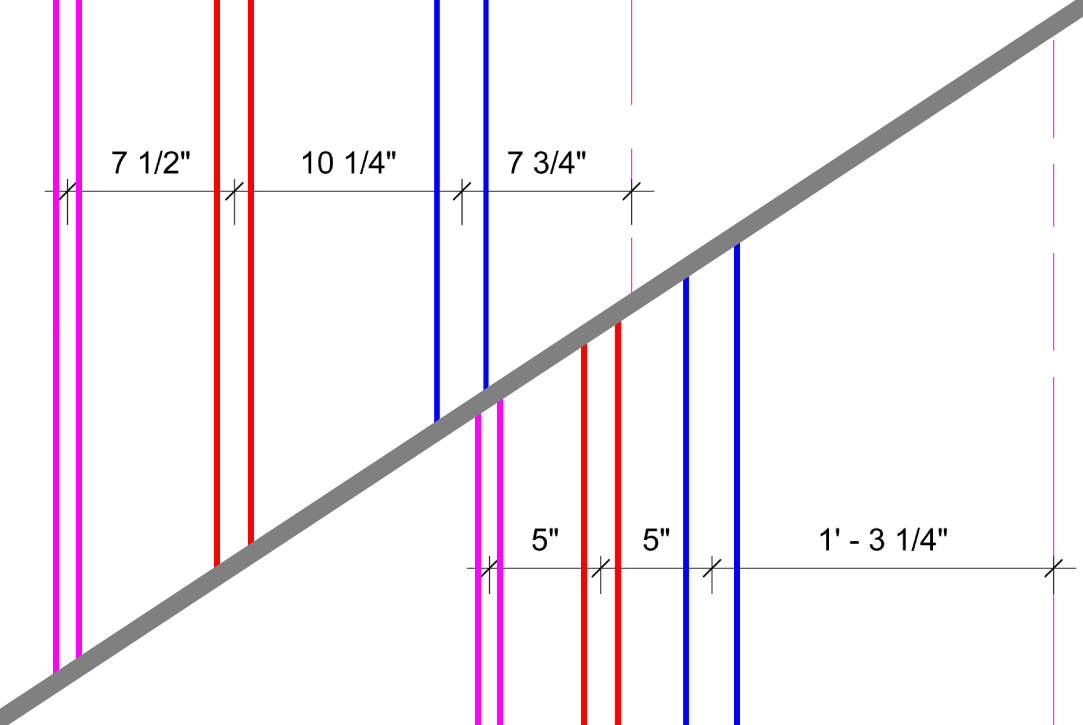
Unlike the Evenly Distribute tool, which distributes pipes based on centerline spacing, this tool calculates the distance between the outer surfaces of insulated pipes and moves the pipes accordingly.
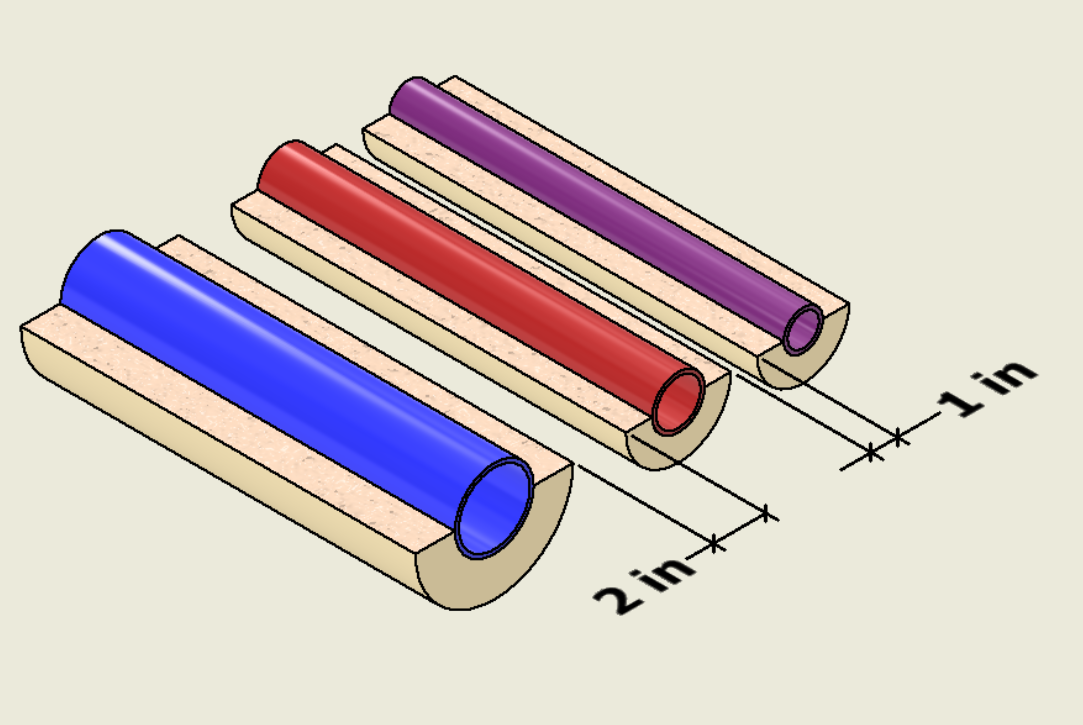
Run the tool and select the pipe that will remain fixed. This pipe is used as the reference, while all other selected pipes are moved relative to it. After selecting the remaining pipes in the group, the Pipe Clearance dialog is displayed.
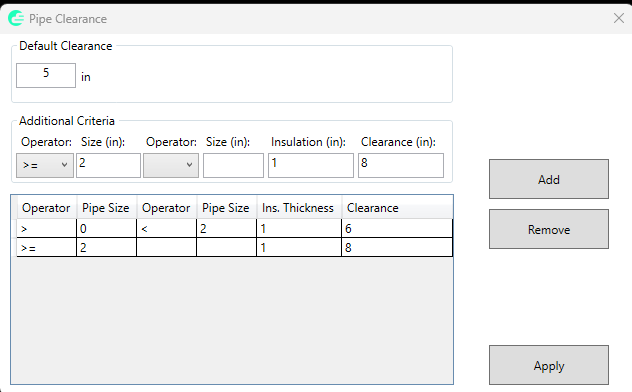
The Default Distance value defines the clearance that will be applied when no additional criteria match a pipe.
Additional rules can be defined to apply different clearances based on pipe size and insulation thickness. Pipe sizes can be filtered using one or two operators, allowing you to target specific size ranges.
For example:
In this case, all matching pipes will be positioned so that the clear distance between the insulation surfaces is 8".
If multiple criteria apply to the same pipe, the largest clearance value is used.
Click Apply to process all rules and reposition the selected pipes.
The tool maintains the specified clearance between insulated pipes while preserving the selected reference pipe position.
The tool repositions pipes to achieve the required clearance while maintaining their current elevations.
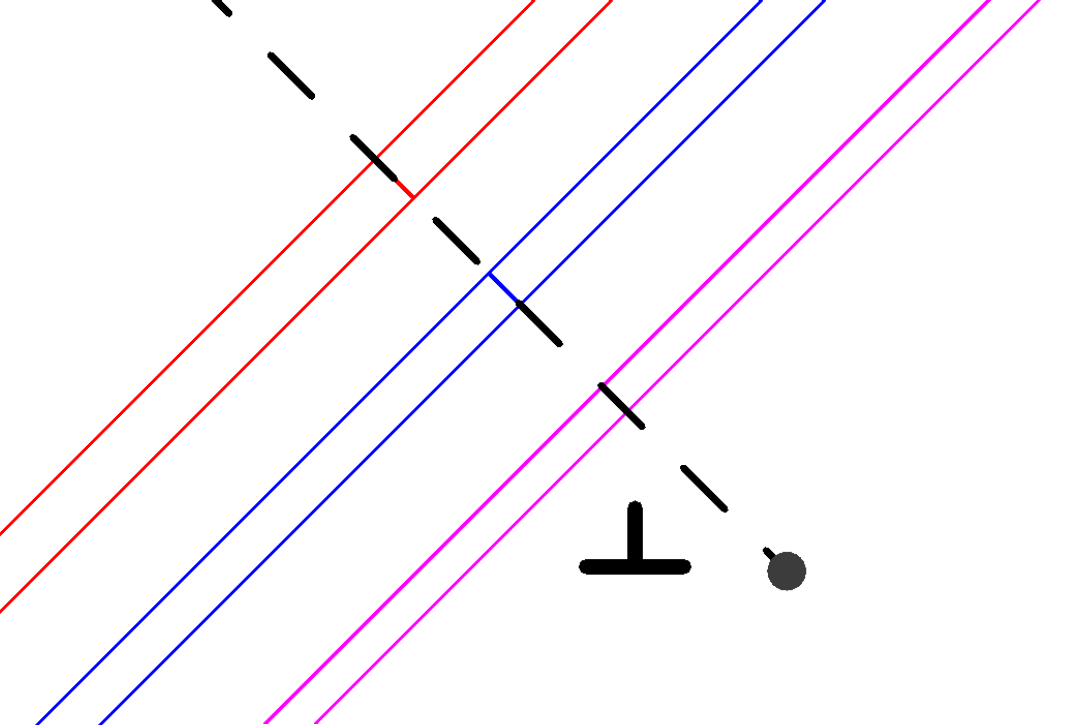
Run the tool, select the pipes, confirm the selection, and then pick a point. The tool will split all selected pipes at the intersection with an infinite line that passes through the selected point and is perpendicular to each pipe.
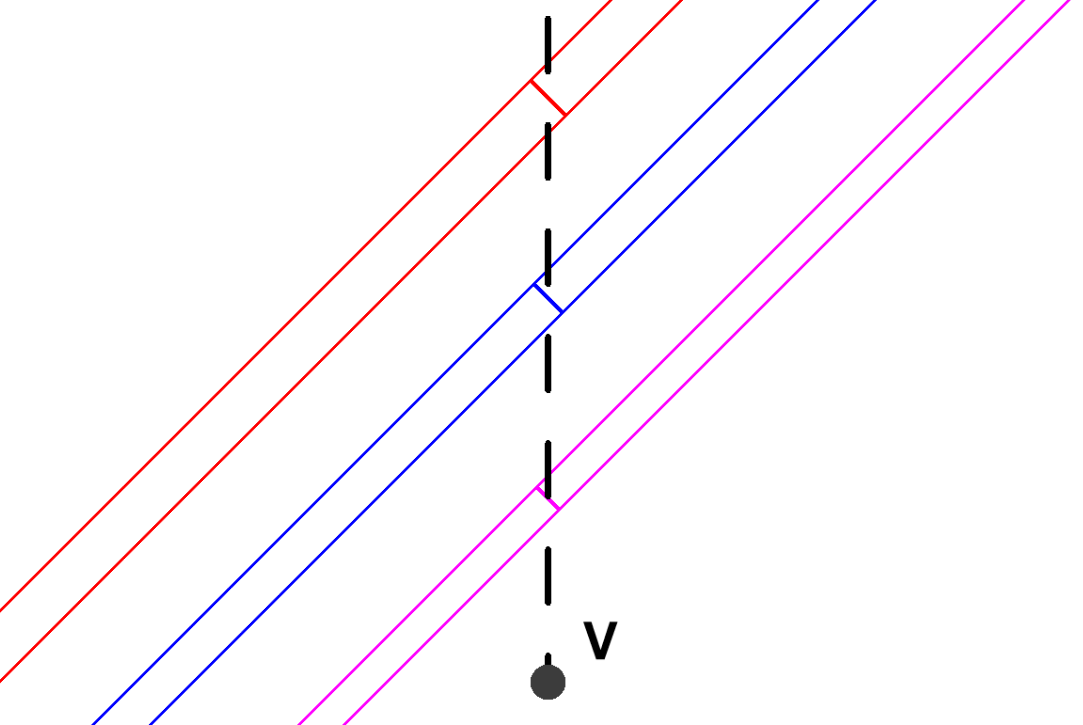
Run the tool, select the pipes, confirm the selection, and then pick a point. The tool will split all selected pipes at the intersection with a vertical infinite line passing through the selected point.
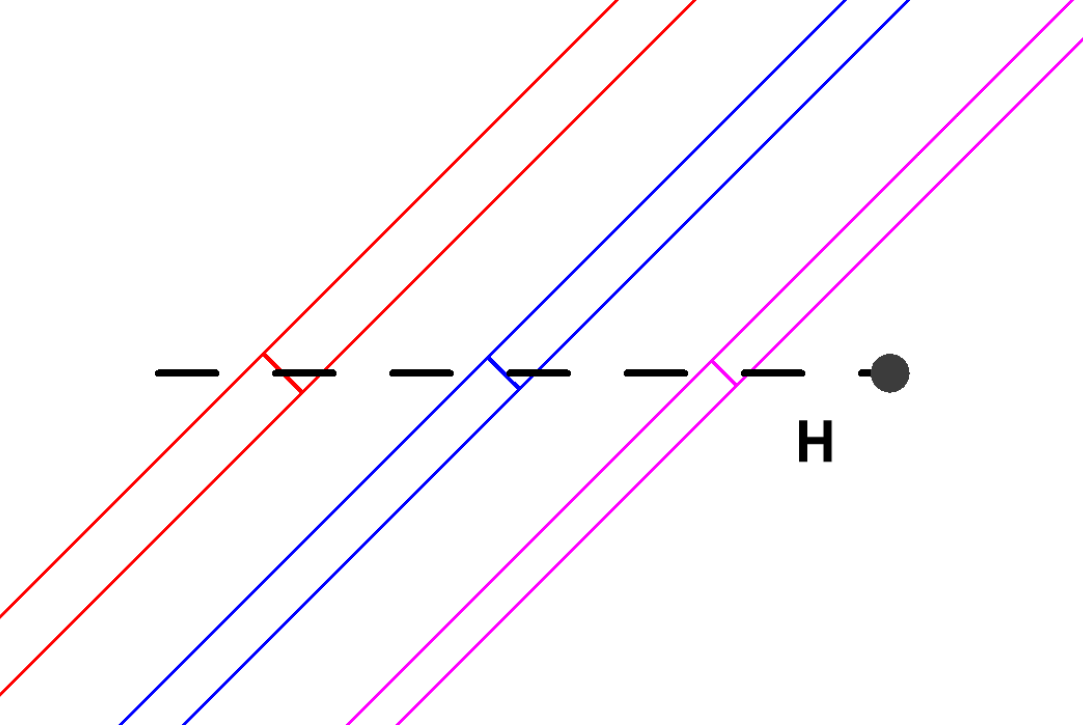
Run the tool, select the pipes, confirm the selection, and then pick a point. The tool will split all selected pipes at the intersection with a horizontal infinite line passing through the selected point.
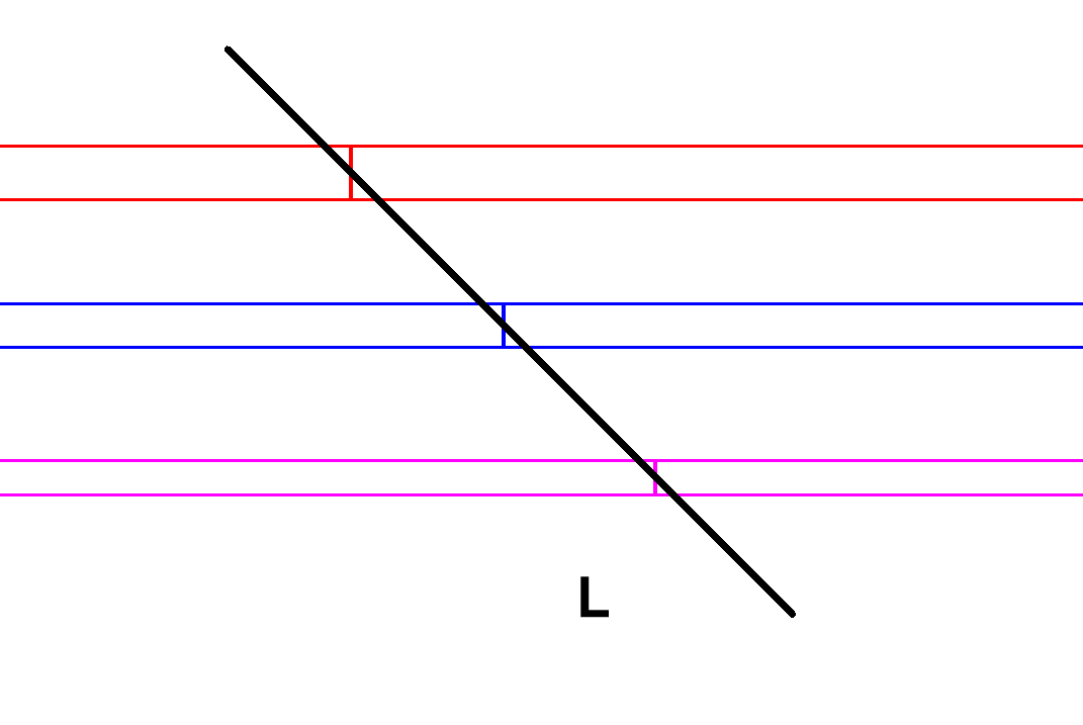
Run the tool, select the pipes, confirm the selection, and then select the line. The tool will split all selected pipes at the intersection with the selected line.
First select reference pipes with the systems you want to isolate. Confirm selection to apply isolation.
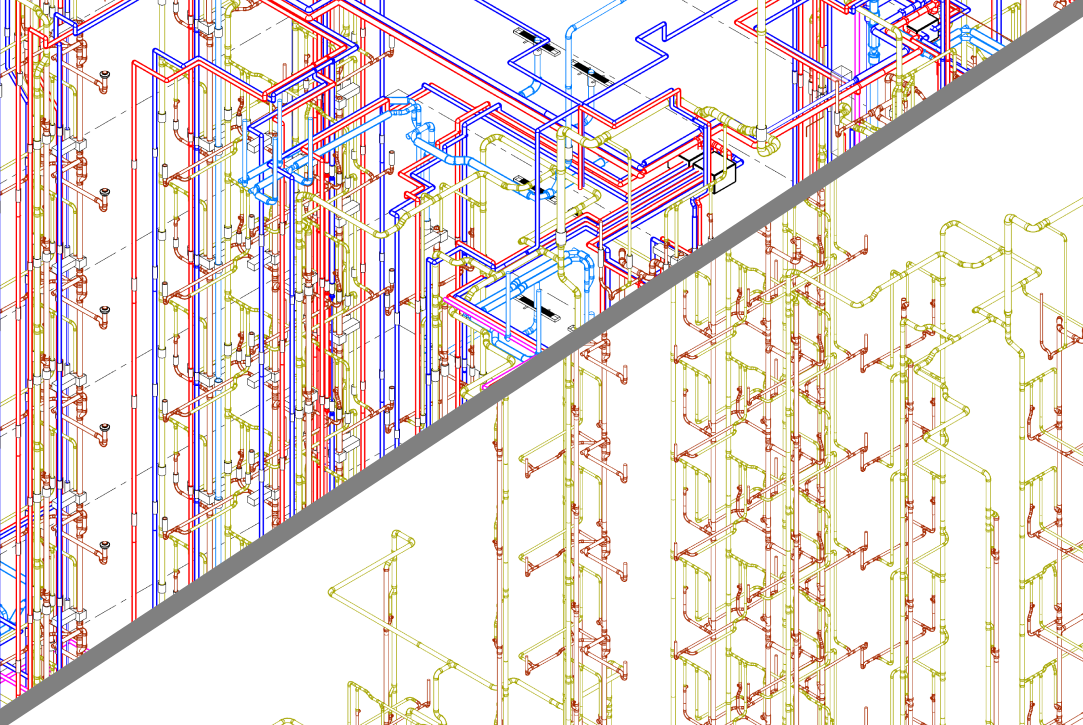
Reverses the effect of the 'Isolate by System Type' tool.
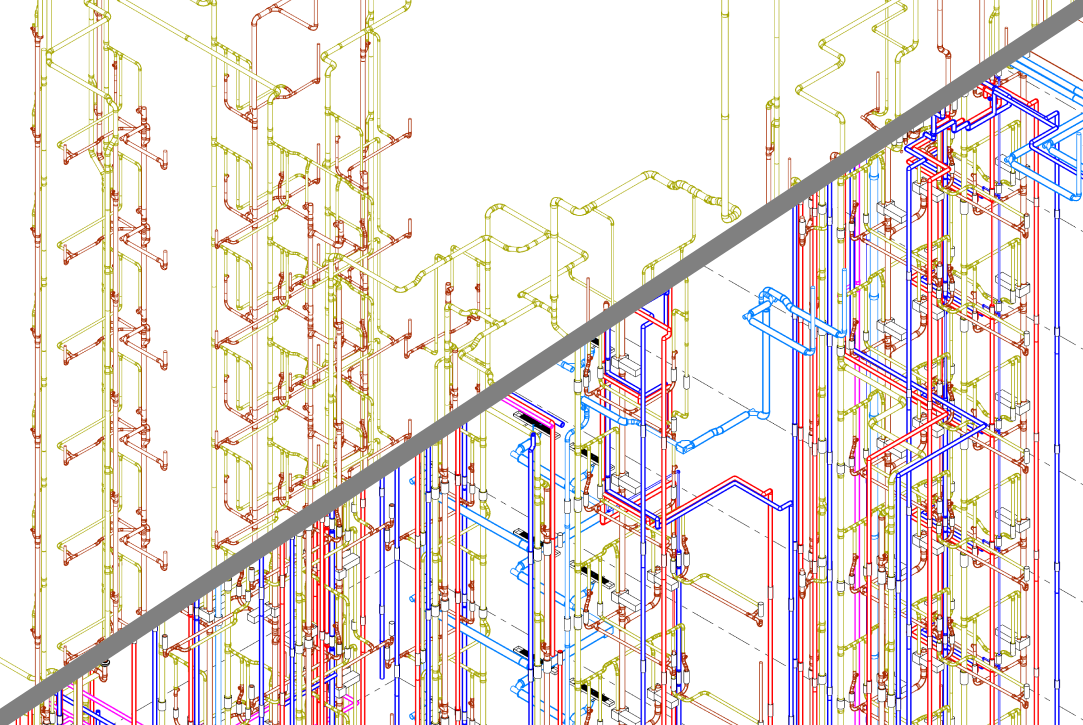
The Insulation by Size and System Type tool allows you to define multiple rules and apply them automatically across the model - ensuring consistency and saving significant time.
Instead of manually selecting pipes and applying insulation one by one, you can define rules based on:
Once defined, the tool processes all matching elements and applies the correct insulation automatically.
Use the upper section of the dialog to define filtering criteria and insulation properties. After defining a rule, click Add to include it in the list.
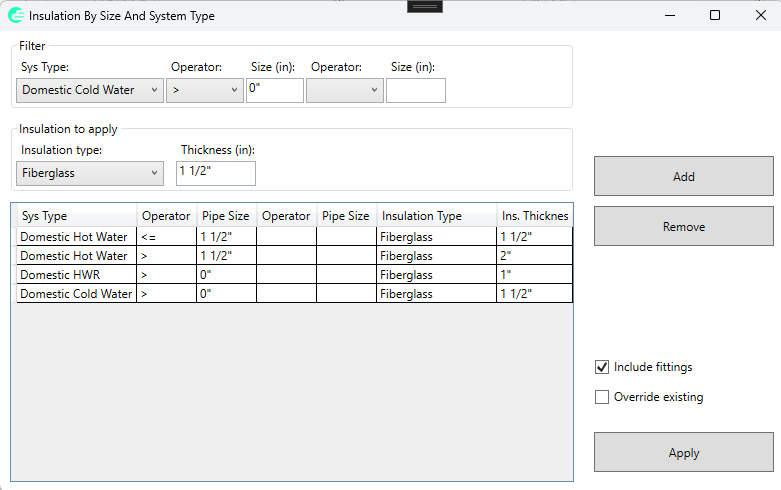
You can define multiple rules for different combinations of systems and pipe sizes. The rules will be applied sequentially.
The grid shows all defined rules, including system type, pipe size conditions, insulation type, and thickness.
Click Apply to execute all defined rules. The tool will process pipes (and optionally fittings) and apply insulation accordingly.
After execution, a report is displayed showing the results of each rule.
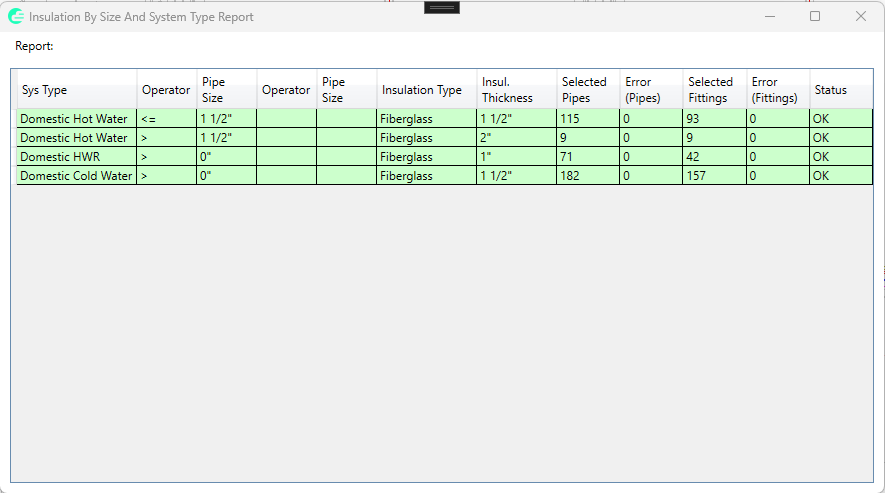
The report includes:
For example, you can define rules such as:
This allows you to standardize insulation across the entire model with a single click.
If insulation is hidden in the current view, the tool will make it visible and vice versa.